One balance for all your creative tools. Top up anytime—your credits never expire.
Secure checkout
Instant credit delivery
Credits never expire
Starter
$10one-time
900 credits$0.0111 / credit
Video Face Swap
Up to 15 video minutes
AI Video Generator
Up to 90 s
Batch & Multi-Face Swap
Up to 900 photos
AI Image Generation
45Grok
45Nano Banana 2
60GPT-2
60Seedream
180Qwen
AI Photo Swaps
Up to 60 swaps
Head, body & clothes
Creator
Save 10%
$20one-time
2,000 credits$0.0100 / credit
Video Face Swap
Up to 34 video minutes
AI Video Generator
Up to 200 s
Batch & Multi-Face Swap
Up to 2,000 photos
AI Image Generation
100Grok
100Nano Banana 2
133GPT-2
133Seedream
400Qwen
AI Photo Swaps
Up to 133 swaps
Head, body & clothes
Most Popular
Pro
Save 25%
$50one-time
6,000 credits$0.0083 / credit
Video Face Swap
Up to 100 video minutes
AI Video Generator
Up to 600 s
Batch & Multi-Face Swap
Up to 6,000 photos
AI Image Generation
300Grok
300Nano Banana 2
400GPT-2
400Seedream
1,200Qwen
AI Photo Swaps
Up to 400 swaps
Head, body & clothes
Studio
Save 40%
$100one-time
15,000 credits$0.0067 / credit
Video Face Swap
Up to 250 video minutes
AI Video Generator
Up to 1500 s
Batch & Multi-Face Swap
Up to 15,000 photos
AI Image Generation
750Grok
750Nano Banana 2
1,000GPT-2
1,000Seedream
3,000Qwen
AI Photo Swaps
Up to 1,000 swaps
Head, body & clothes
Agency
Save 50%
$200one-time
36,000 credits$0.0056 / credit
Video Face Swap
Up to 600 video minutes
AI Video Generator
Up to 3600 s
Batch & Multi-Face Swap
Up to 36,000 photos
AI Image Generation
1,800Grok
1,800Nano Banana 2
2,400GPT-2
2,400Seedream
7,200Qwen
AI Photo Swaps
Up to 2,400 swaps
Head, body & clothes
Starter
$10one-time
900 credits$0.0111 / credit
Video Face Swap
Up to 15 video minutes
AI Video Generator
Up to 90 s
Batch & Multi-Face Swap
Up to 900 photos
AI Image Generation
45Grok
45Nano Banana 2
60GPT-2
60Seedream
180Qwen
AI Photo Swaps
Up to 60 swaps
Head, body & clothes
Creator
Save 10%
$20one-time
2,000 credits$0.0100 / credit
Video Face Swap
Up to 34 video minutes
AI Video Generator
Up to 200 s
Batch & Multi-Face Swap
Up to 2,000 photos
AI Image Generation
100Grok
100Nano Banana 2
133GPT-2
133Seedream
400Qwen
AI Photo Swaps
Up to 133 swaps
Head, body & clothes
Most Popular
Pro
Save 25%
$50one-time
6,000 credits$0.0083 / credit
Video Face Swap
Up to 100 video minutes
AI Video Generator
Up to 600 s
Batch & Multi-Face Swap
Up to 6,000 photos
AI Image Generation
300Grok
300Nano Banana 2
400GPT-2
400Seedream
1,200Qwen
AI Photo Swaps
Up to 400 swaps
Head, body & clothes
Studio
Save 40%
$100one-time
15,000 credits$0.0067 / credit
Video Face Swap
Up to 250 video minutes
AI Video Generator
Up to 1500 s
Batch & Multi-Face Swap
Up to 15,000 photos
AI Image Generation
750Grok
750Nano Banana 2
1,000GPT-2
1,000Seedream
3,000Qwen
AI Photo Swaps
Up to 1,000 swaps
Head, body & clothes
Agency
Save 50%
$200one-time
36,000 credits$0.0056 / credit
Video Face Swap
Up to 600 video minutes
AI Video Generator
Up to 3600 s
Batch & Multi-Face Swap
Up to 36,000 photos
AI Image Generation
1,800Grok
1,800Nano Banana 2
2,400GPT-2
2,400Seedream
7,200Qwen
AI Photo Swaps
Up to 2,400 swaps
Head, body & clothes
Each maximum assumes all credits are used on that tool or model. Mix and match tools using the same credit balance.
Payment Guides
A step-by-step guide to purchasing your Live3D credits.
How to Purchase Credits Using Telegram Stars
We now support Telegram Stars for seamless credit purchases. You can easily complete your payment via Telegram using your credit card, Apple Pay, or Google Pay. Follow this quick guide to get started.
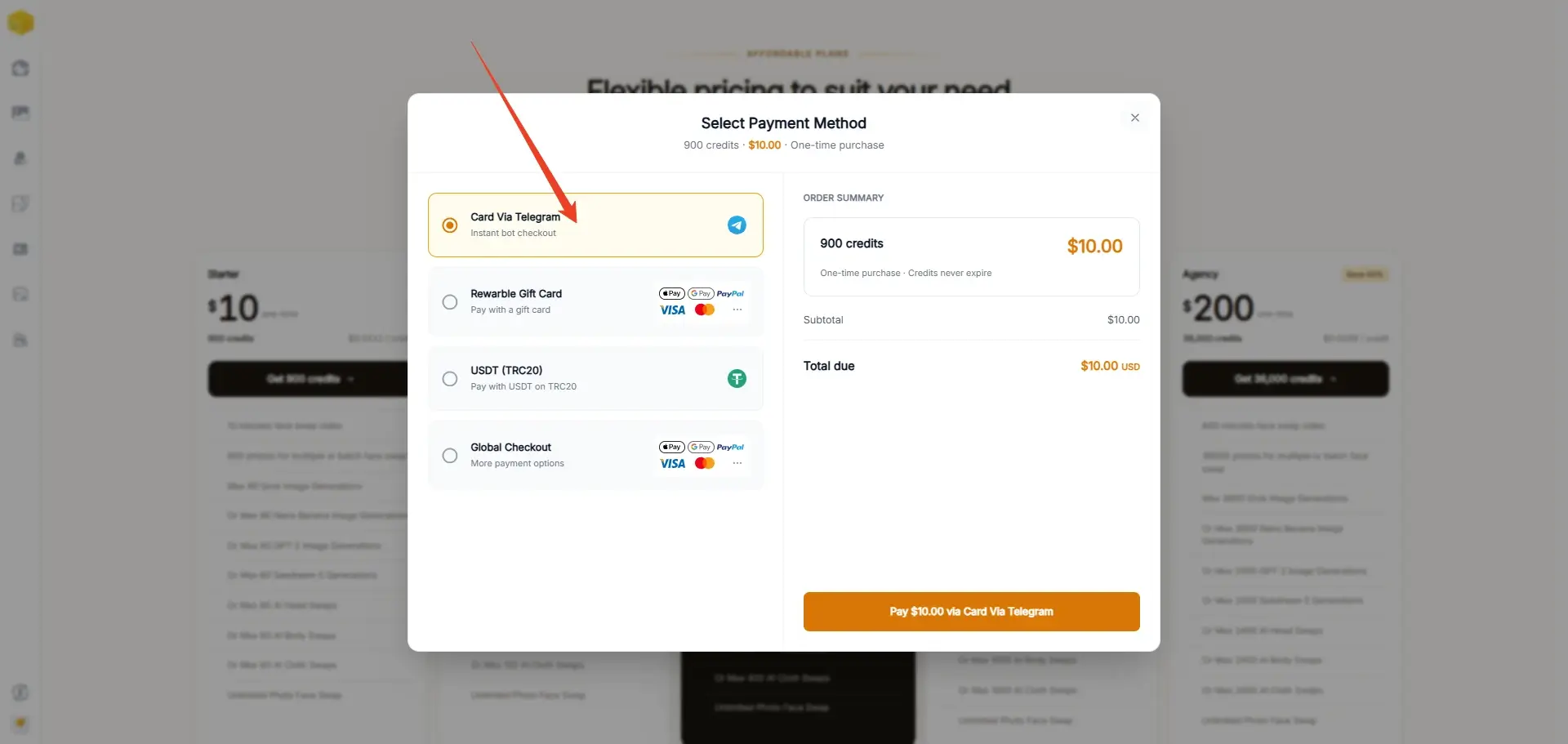
01Step 1: Select Your Package
Navigate to our pricing page and select Telegram as your preferred payment method.
Choose the specific credit package you wish to purchase.
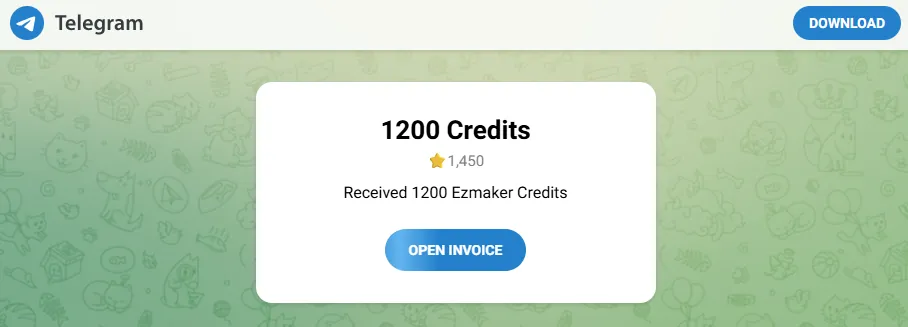
You will then see an order summary page displaying your package details and the equivalent cost in Telegram Stars. Click the "Open Invoice" button to proceed.
02Step 2: Proceed to Telegram
After clicking the button, your Telegram application will automatically launch.
This works seamlessly on both the Telegram desktop program and the mobile app.
Note: If you do not have Telegram installed yet, please download the app and create an account first. Once you are logged in, return to our website and click "Open Invoice" again.
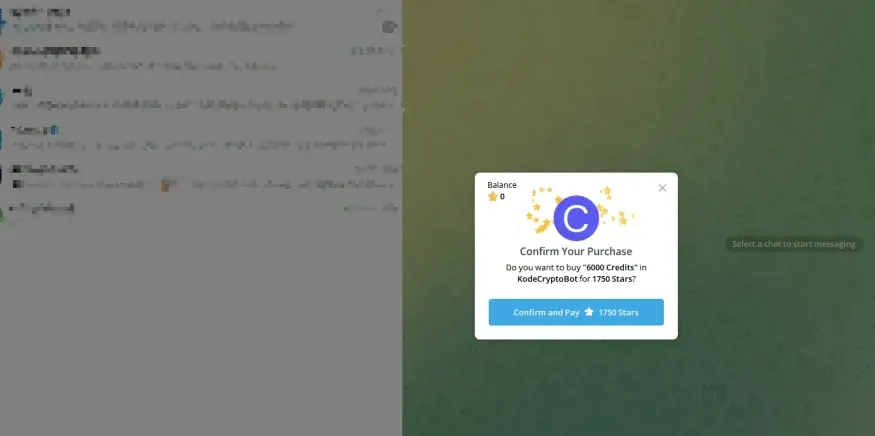
03Step 3: Confirm the Transaction
Inside Telegram, a "Confirm Your Purchase" window will pop up.
This screen details the package name and the exact number of Stars required.
Simply click the "Confirm and Pay" button to authorize the transaction.
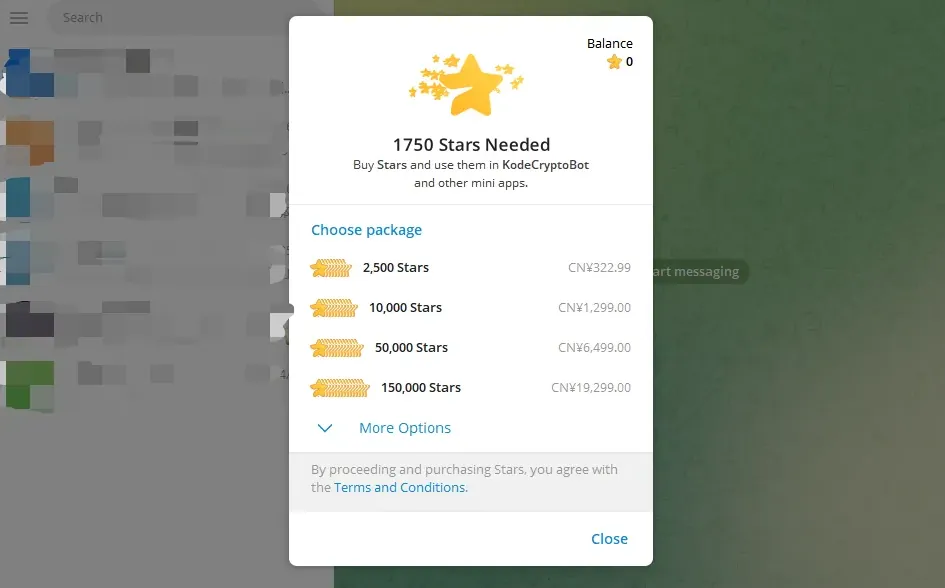
04Step 4: Managing Insufficient Star Balances
If your wallet does not have enough Stars to cover the transaction, you will need to top up:
Standard Automatic Prompt: In most cases, Telegram will automatically display a checkout window allowing you to buy more Stars. You can easily pay via Apple Pay, Google Pay, or a Credit/Debit Card.
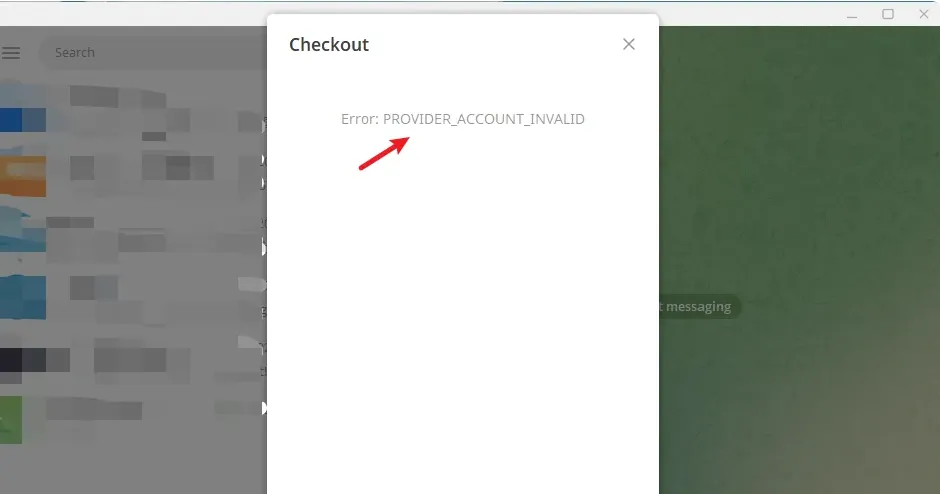
Resolving the "Invalid Account" Error: Occasionally, the checkout page might fail and display an Error: PROVIDER_ACCOUNT_INVALID message.
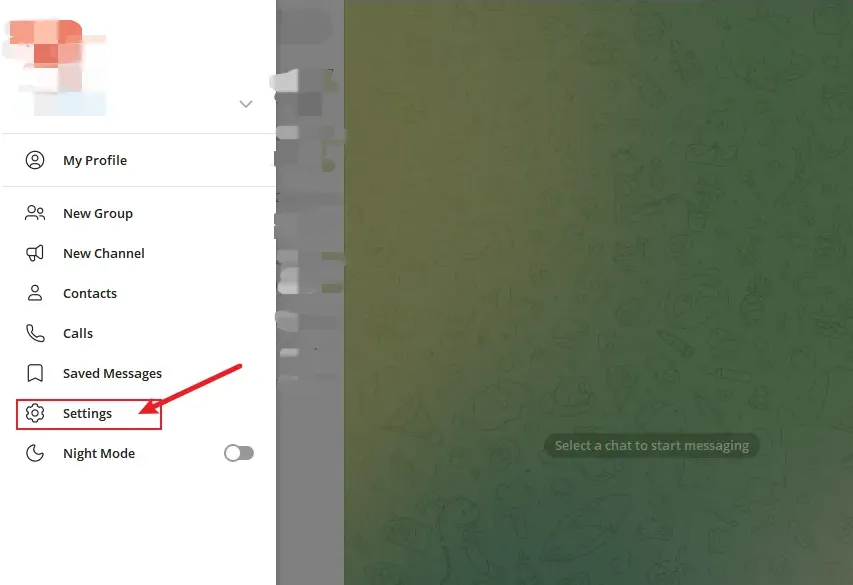
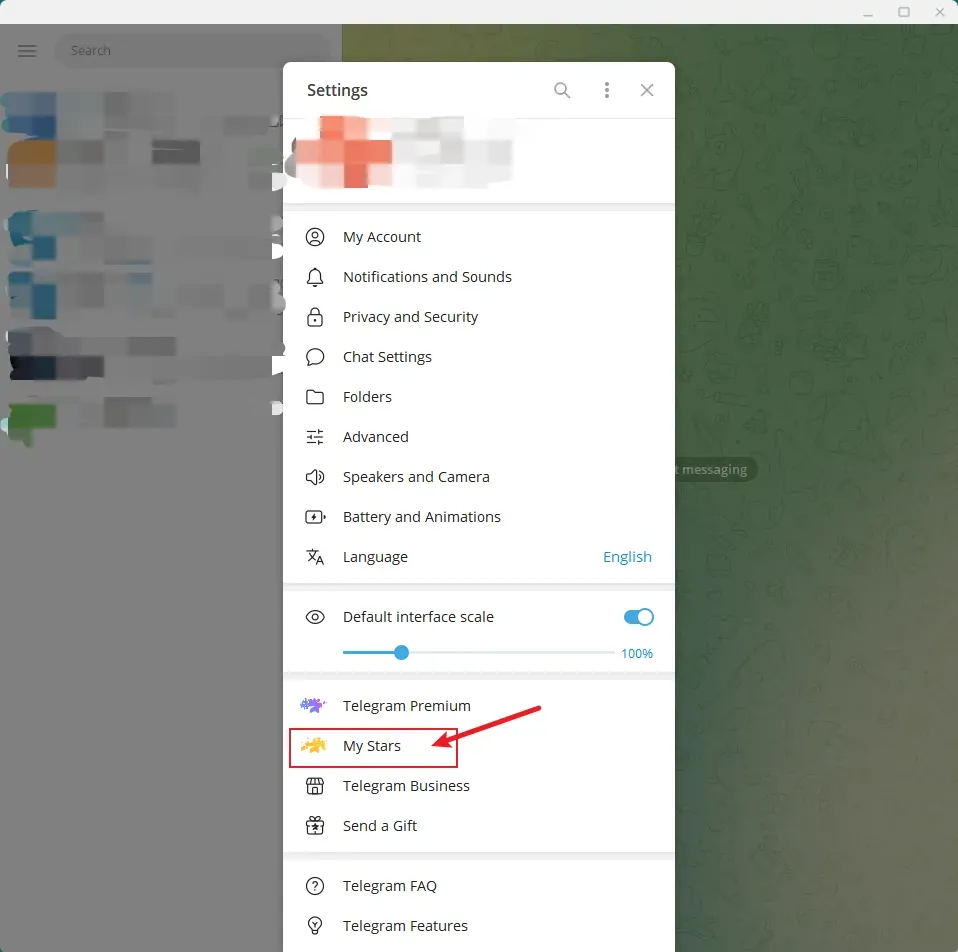
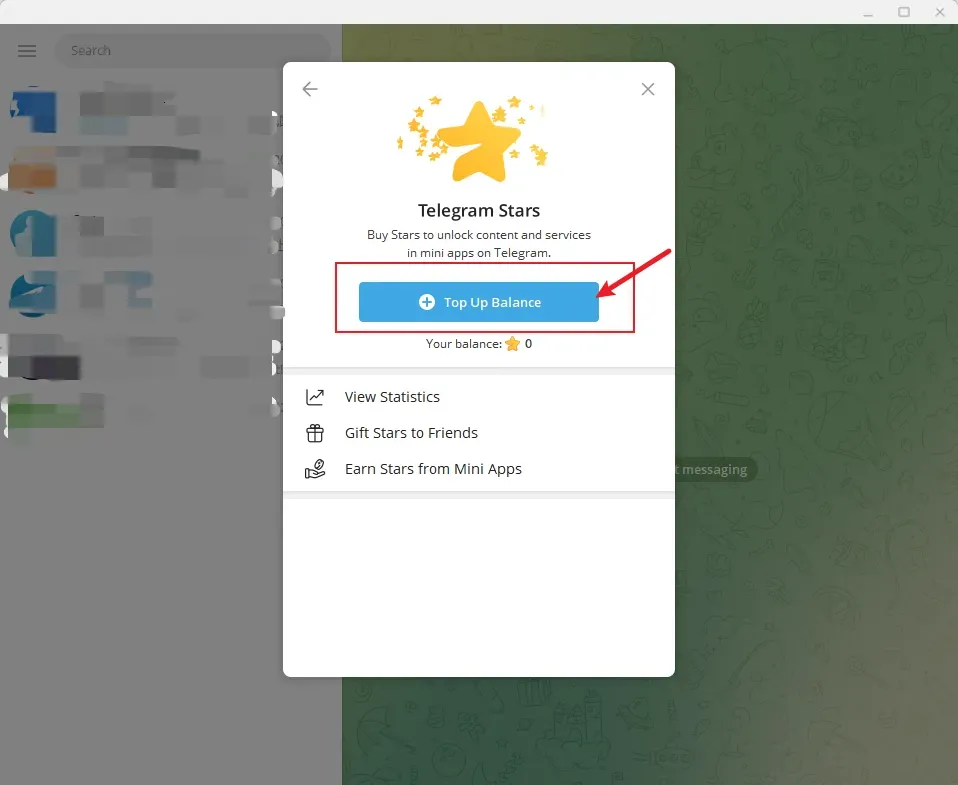
If this occurs, simply close the error box and top up your Stars manually:
1. Open your Telegram menu and go to "Settings".
2. Select "My Stars".
3. Click the "Top Up Balance" button.
4. Choose the amount of Stars you need and complete the payment.
05Step 5: Finalize and Receive Your Credits
Once the transaction is authorized, the required Stars will be deducted from your Telegram balance, and your AI credits will be automatically added to your account on our platform.
You can start using your credits immediately.
Important Reminders & Troubleshooting
Secure Payments: Telegram Stars are processed securely through Telegram's official payment system. We do not store or handle your sensitive card information.
Verify Your Account: Make sure you are logged into the correct Telegram account before confirming the purchase to ensure your Stars are applied to the right profile.
Complete the Final Step: Buying Stars in Telegram is only the first step. To actually receive your AI credits, you must still complete the payment by returning to our platform's checkout page and authorizing the final transfer.
Avoid Extra Surcharges: We recommend purchasing Stars on Telegram Desktop or Telegram Web when possible. On mobile devices, buying Stars through the app may include App Store or Google Play platform fees, which do not apply on Desktop/Web.
Missing Credits? If you purchased Stars successfully but your credits were not added, please check whether you returned to our payment page and completed the final payment step.
How to Pay with USDT (TRC20)
You can quickly top up your credits using USDT on the TRON network (TRC20) directly from your private crypto wallet or exchange account. Follow the step-by-step instructions below.
01Step 1: Select USDT on the Checkout Page
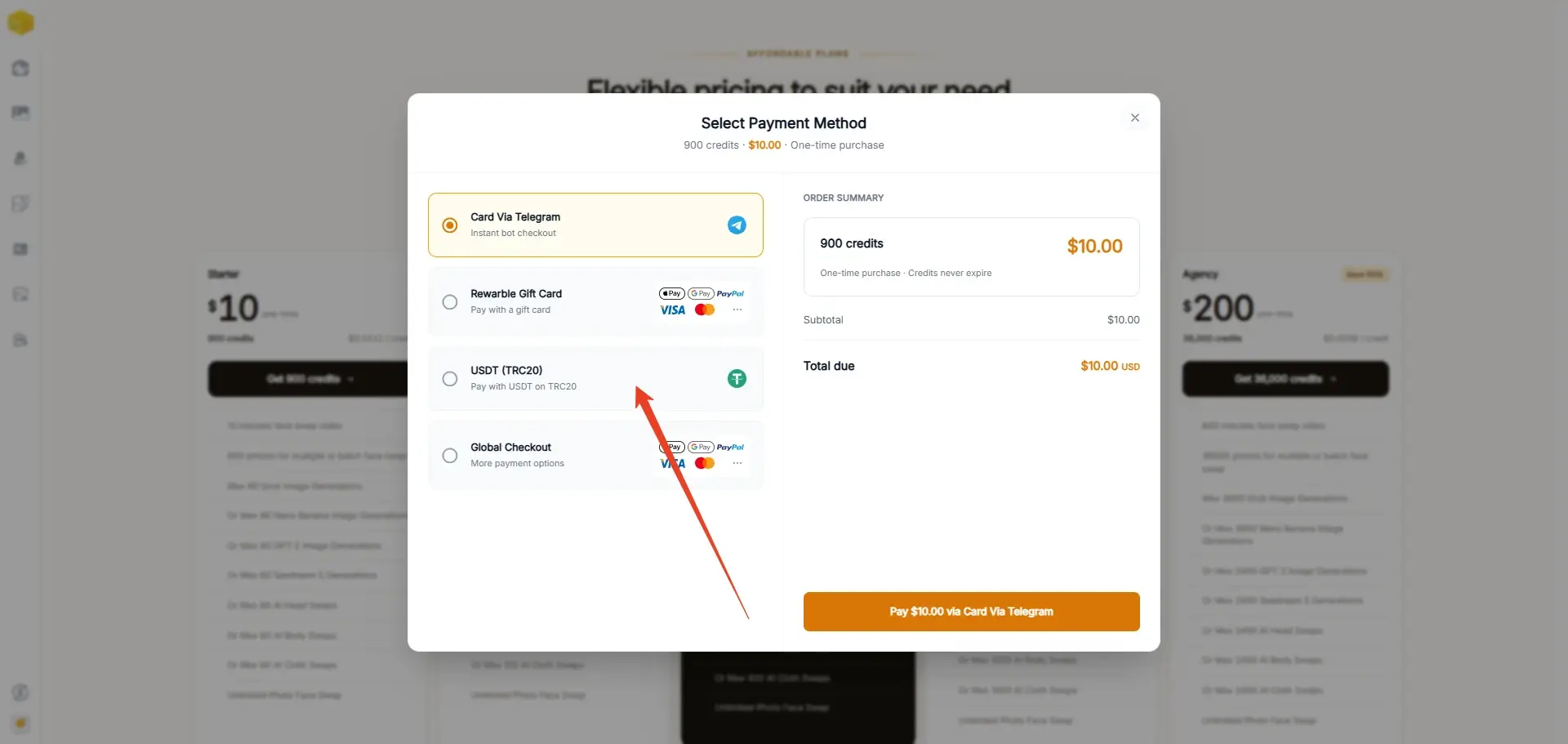
1. On our pricing/checkout popup, select USDT (TRC20) under the payment options.
2. Verify your order summary and click Pay with USDT (TRC20) to generate your unique invoice.
02Step 2: Transfer the Exact Amount
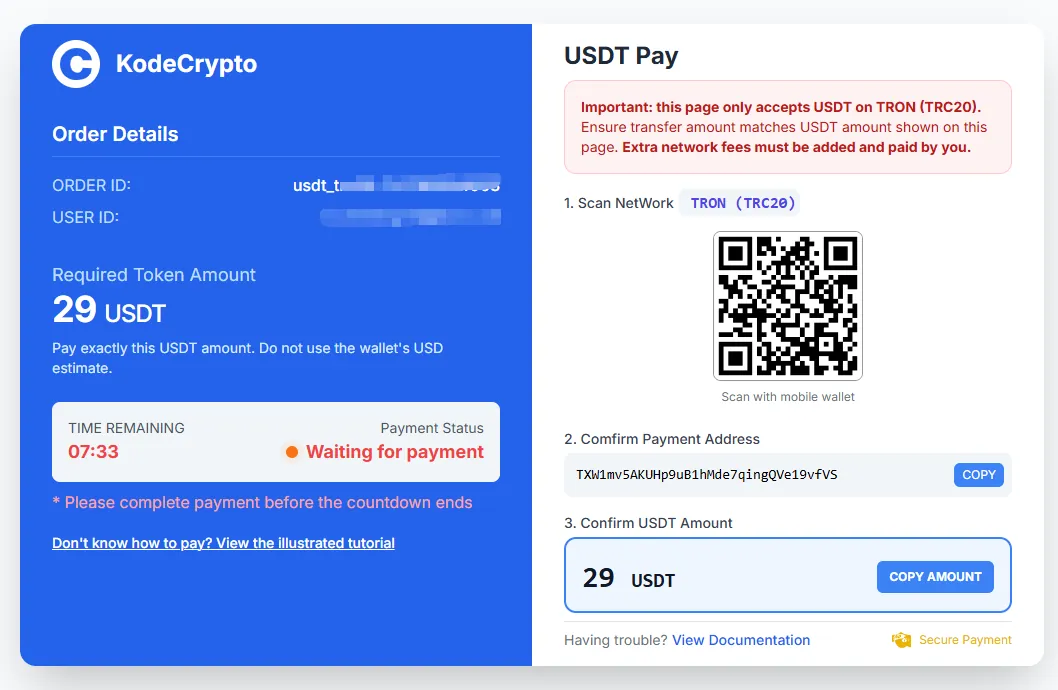
Once the invoice page loads, you will see the QR code, the TRON Payment Address, the Exact USDT Amount, and a countdown timer.
1. Open your wallet or exchange: Launch your Web3 wallet (e.g., Trust Wallet, TronLink) or exchange app (e.g., Binance, OKX).
2. Scan or copy details:
Mobile Wallet: Scan the on-screen QR code directly to auto-fill the address and amount.
Manual Transfer: Copy the recipient address and paste it into your wallet’s "Withdraw / Send" field.
3. Network Selection: Make sure to select TRON (TRC20) as the transfer network. (Do not choose ERC20, BSC, or other networks, as funds sent across incompatible chains cannot be recovered.)
4. Account for Network / Withdrawal Fees:
From a Private Wallet: Ensure your wallet holds a small balance of TRX (around 15–30 TRX) to pay the TRON network transaction fee.
From an Exchange: Exchanges automatically deduct their withdrawal fee from the sent amount. Make sure the Received Amount (Net Amount) matches the exact invoice number (e.g., if the invoice is 29 USDT and the exchange fee is 1 USDT, submit a withdrawal of 30 USDT).
03Step 3: Await Instant Confirmation
1. Once your transaction is broadcasted to the blockchain, return to the invoice page.
2. The system monitors the TRON blockchain and will automatically detect your payment.
3. Confirmations typically take less than 1 to 2 minutes. Once verified, your AI credits will be automatically credited to your account balance.
Critical Notices & Best Practices
Watch the Countdown Timer: Please finalize the transaction before the on-screen timer expires. Do not send funds to an expired invoice address.
Strict TRC20 Network Only: This gateway strictly accepts USDT on the TRON network (TRC20). Sending via Ethereum (ERC20), BNB Chain, or any other blockchain will result in irreversible loss of assets.
Send the Exact Net Amount: Partial payments will pause automated delivery. Always verify that the network/exchange fee has been accounted for so the target address receives the precise amount requested.
Payment Delayed? If the countdown ends or your credits are not assigned within 5 minutes of a confirmed on-chain transfer, copy your transaction hash (TXID) along with your registered account email and reach out to our customer support team for prompt manual reconciliation.
Need Help Getting Started with Crypto?
If you are completely new to Web3 and do not own USDT yet:
1. Get a TRON Wallet: Download and set up TronLink.
2. Acquire USDT: Purchase USDT via regulated exchanges such as Binance or Coinbase.
3. Learn the Basics: Read our quick guide on How to Withdraw USDT via TRC20 ↗.
How to Purchase Credits via Gift Card
Note: Live3D currently supports two gift card platforms: G2A and SEAGM. This guide walks you through the purchasing and redemption process using G2A as an example.
You can easily top up your Live3D credits by purchasing a Rewarble gift card on G2A. Once your order is complete, simply retrieve your 16-character digital code and redeem it directly on our checkout page. Follow the steps below to complete your purchase.
01Step 1: Select Gift Card Payment on Live3D
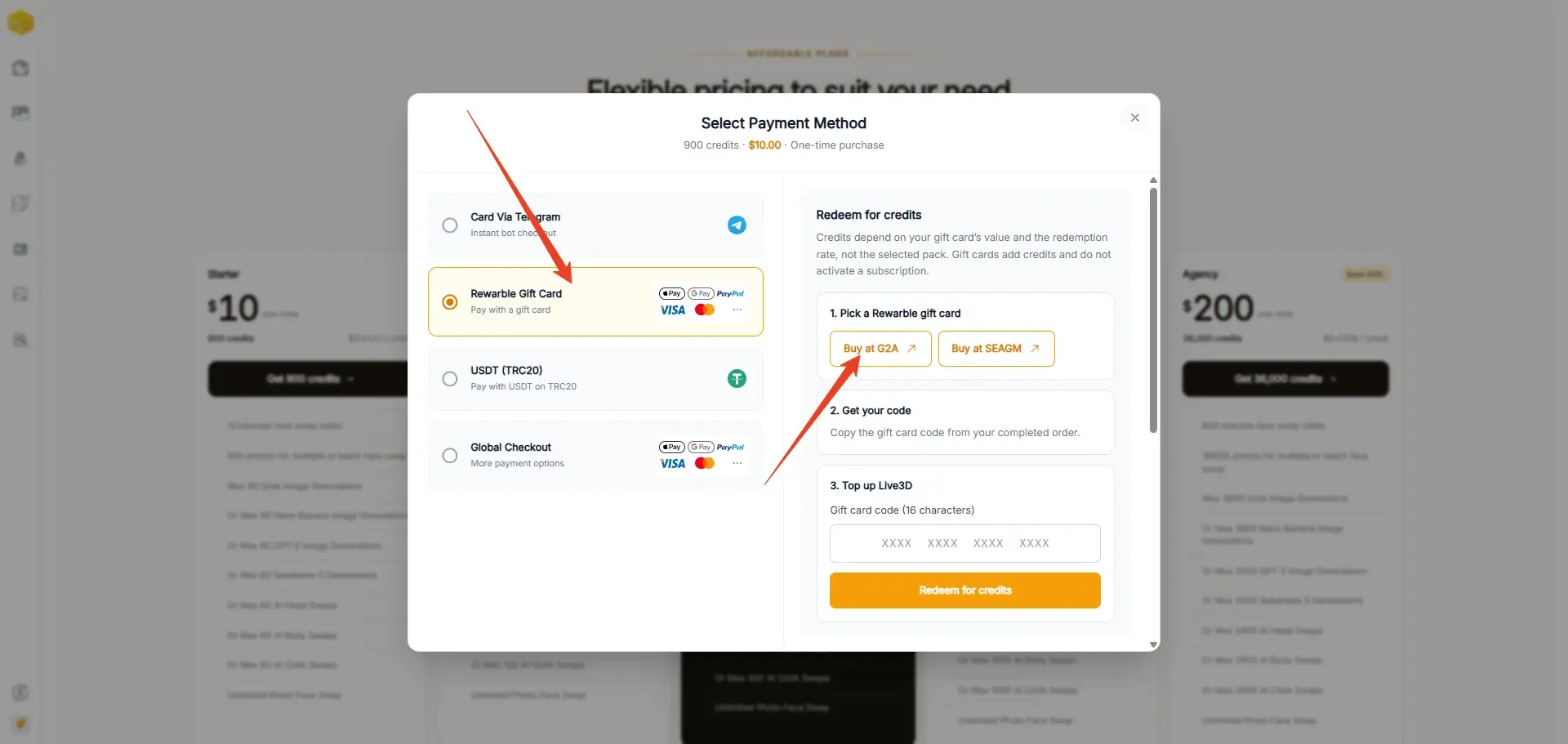
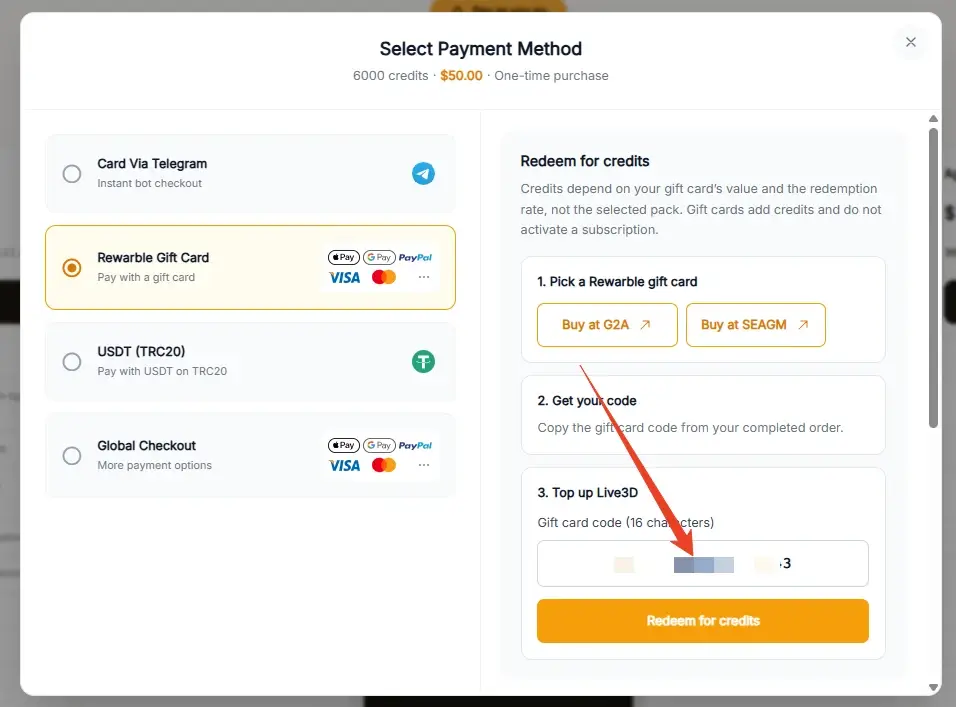
On the Live3D payment window, select Rewarble Gift Card on the left panel.
Under "1. Buy a Rewarble gift card", click the Buy at G2A button. You will be redirected to the official Rewarble gift card page on G2A.
02Step 2: Choose Denomination and Add to Cart
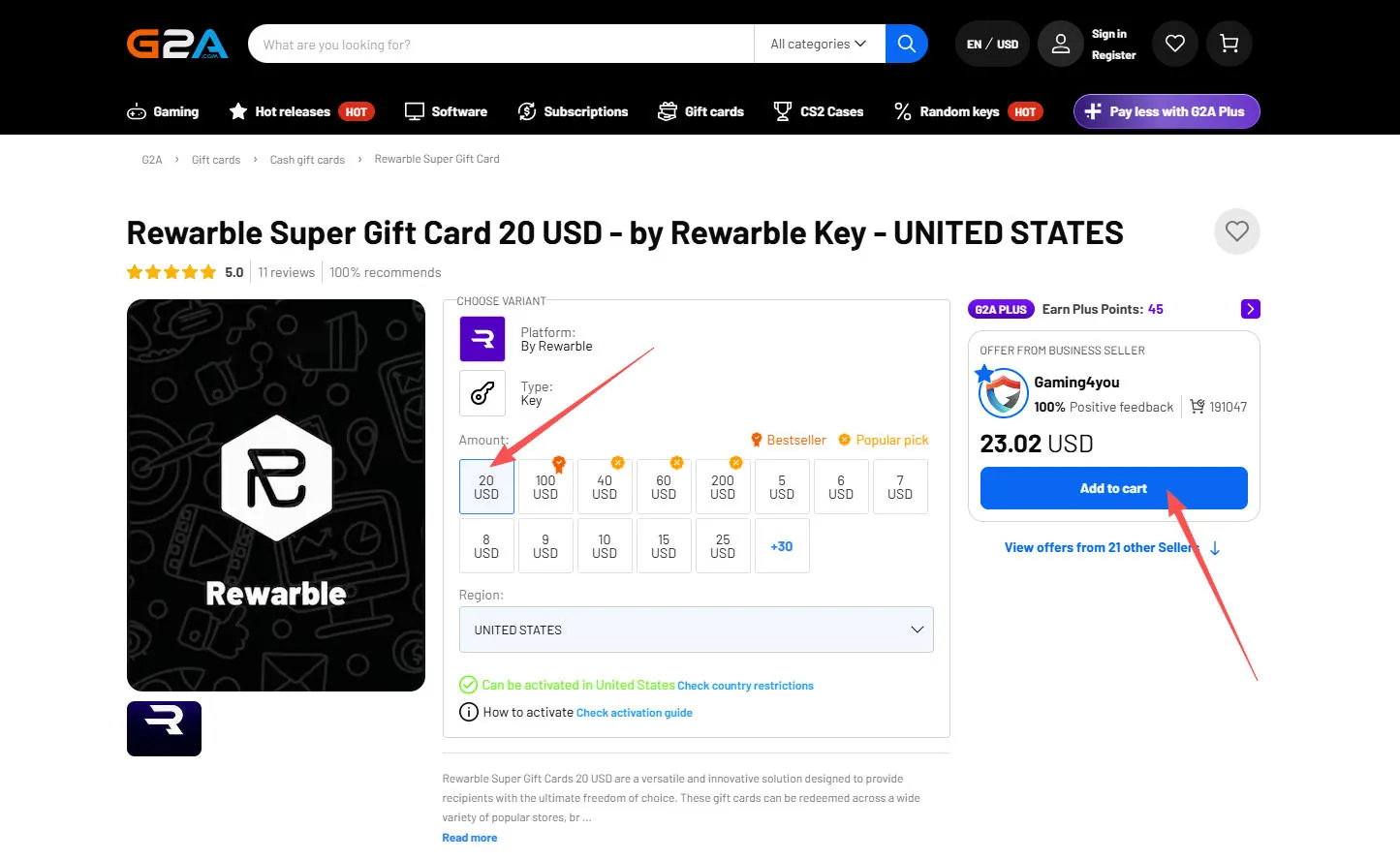
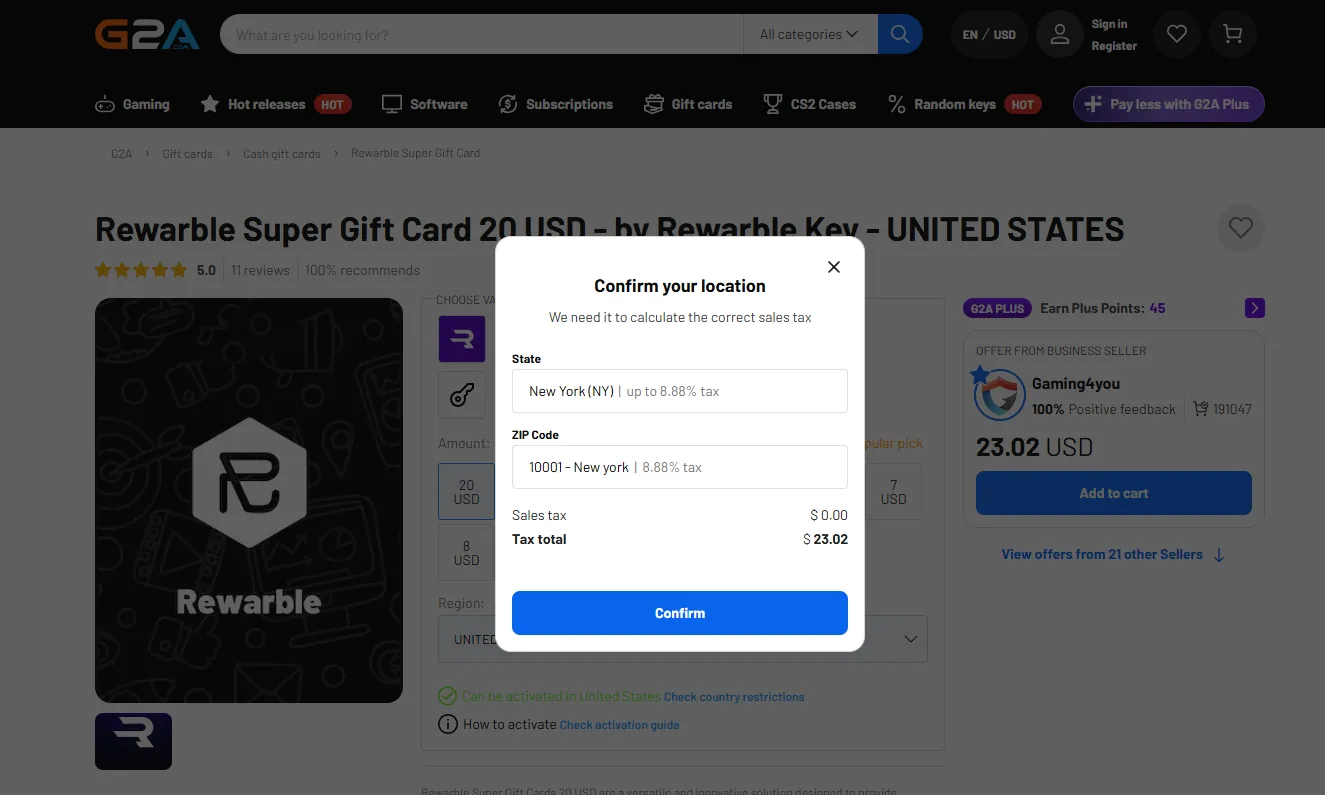
On the G2A product page, the 20 USD denomination is selected by default. You may keep this selection or choose a different amount under the "Amount" section based on your needs.
Click the blue Add to cart button on the right.
A Confirm your location popup will appear to calculate applicable local taxes. Select your state/region and ZIP code, then click Confirm.
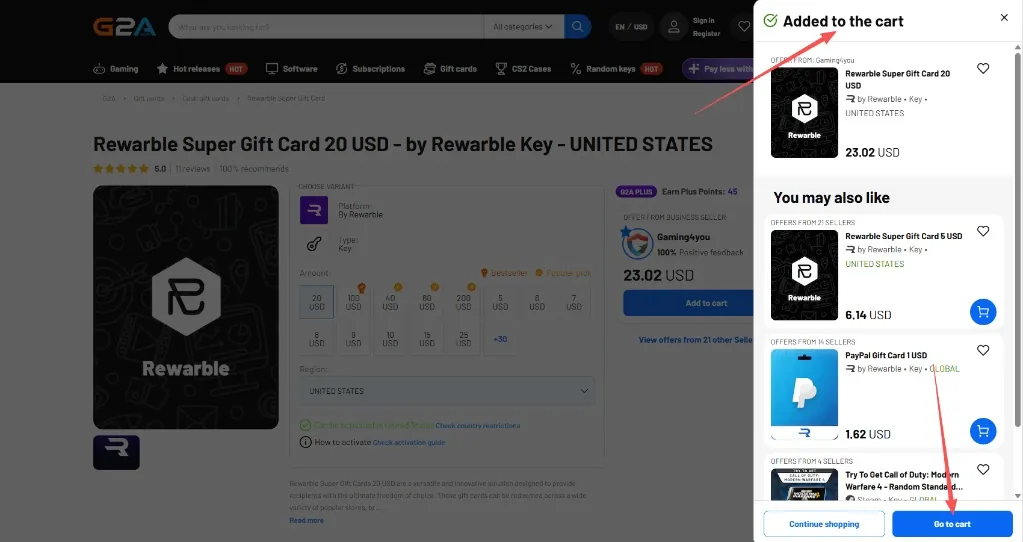
Once confirmed, an Added to the cart sidebar will slide out on the right. Click the Go to cart button at the bottom.
03Step 3: Verify Cart and Complete Payment
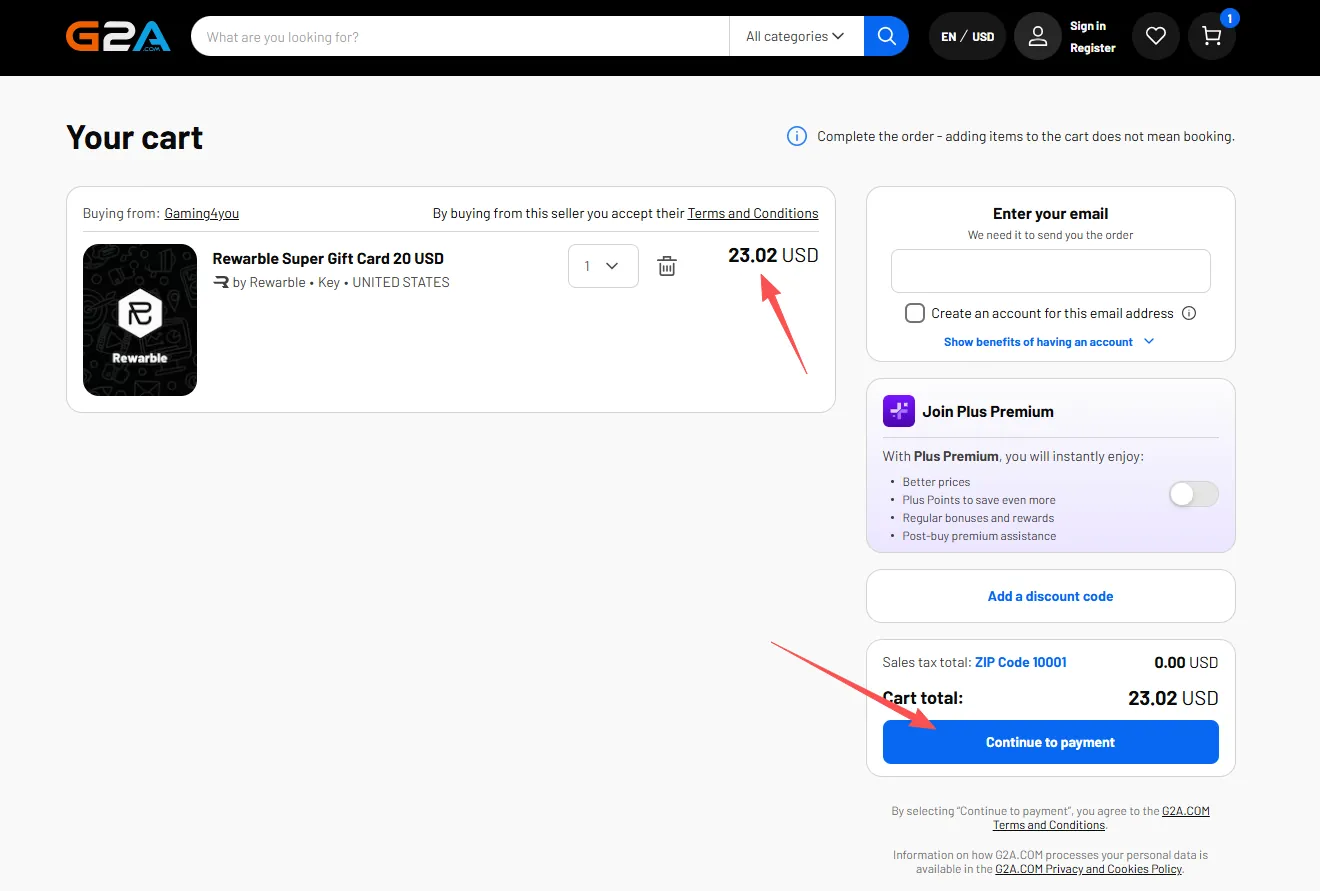
On the Your cart page, review your selected gift card and total price. (Optional: Check the "Join Plus Premium" toggle on the right if you do not wish to subscribe to G2A's monthly membership).
Under the Enter your email section on the right, enter a valid email address. G2A will send your gift card code and order updates to this address.
Click Continue to payment.
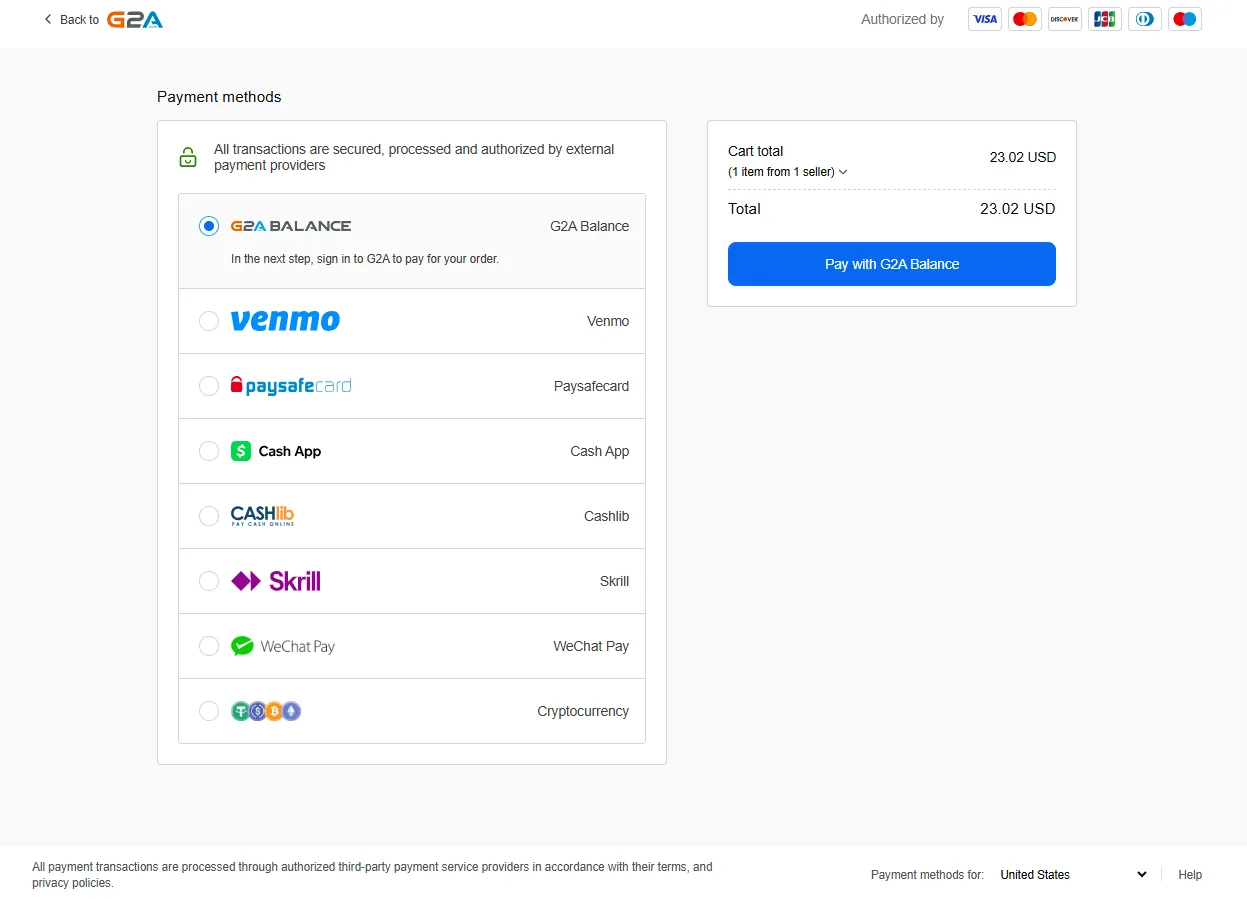
Choose your preferred payment method from the available options (such as G2A Balance, Venmo, Cash App, Paysafecard, Skrill, or Cryptocurrency) and follow the on-screen instructions to complete the payment.
04Step 4: Retrieve Your 16-Character Gift Card Code
After your payment is processed, you can access your redemption code via email or your G2A account dashboard:
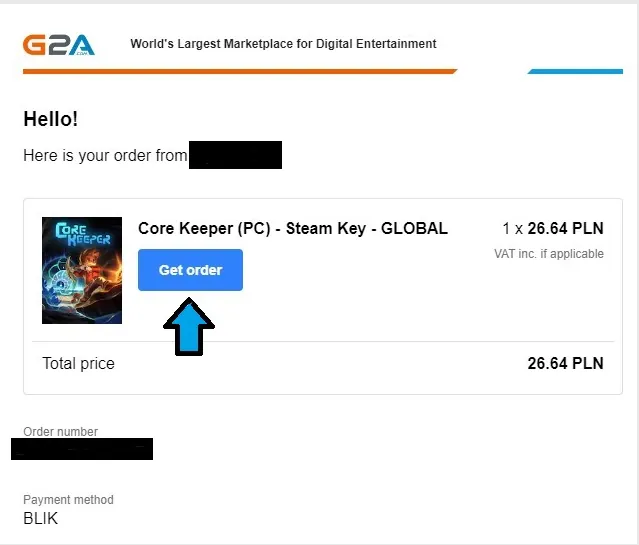
Check your email inbox for the order confirmation from G2A and click the blue Get order button to access your order details page.
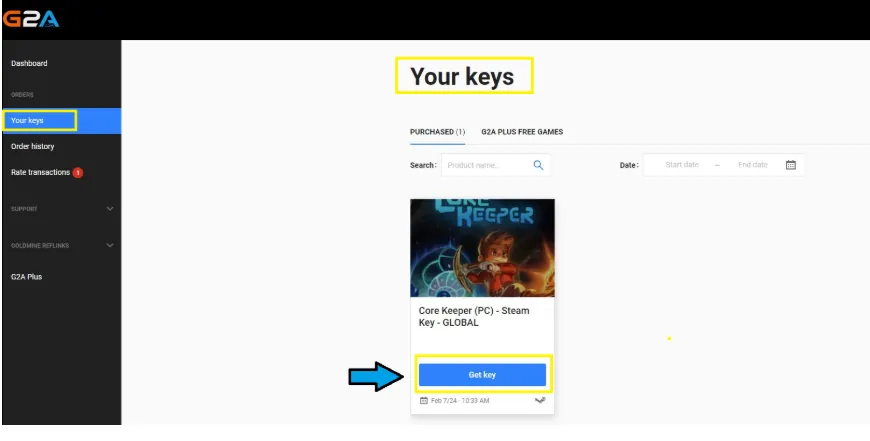
Alternatively, log in to your G2A account, navigate to Orders -> Your keys in the left sidebar, find your purchased gift card, and click the Get key button to reveal and copy your 16-character digital code.
Under "3. Redeem for Live3D credits", paste your 16-character gift card code into the input box (make sure there are no extra spaces).
Click the Redeem now button. Your credits will be calculated and added to your Live3D account immediately.
Important Notes & Troubleshooting
Flexible Credit Conversion (Price Differences): Don't worry if the gift card denomination you purchase on G2A does not match the exact package price initially selected on Live3D. As stated on our checkout page, Live3D automatically calculates and grants credits based on the actual value of your redeemed gift card and our current redemption rate.
Regional Taxes & Marketplace Fees: Depending on your billing location, seller pricing, and chosen payment method on G2A, the final checkout price may include regional sales tax, VAT, or platform processing fees (for example, a $20 USD card may cost $23.02 USD at checkout).
Order Processing & Delivery Time: While most G2A sellers offer instant delivery, fulfillment times can vary depending on the seller and payment verification process. If your code is not available immediately, please monitor your G2A order status page and check your email (including the spam/junk folder).
Missing Credits or Redemption Issues? If you have successfully redeemed your 16-character code on Live3D but your credits have not appeared in your account, please contact our customer support team at service@live3d.io with your Live3D account email and your 16-character gift card code for prompt assistance.